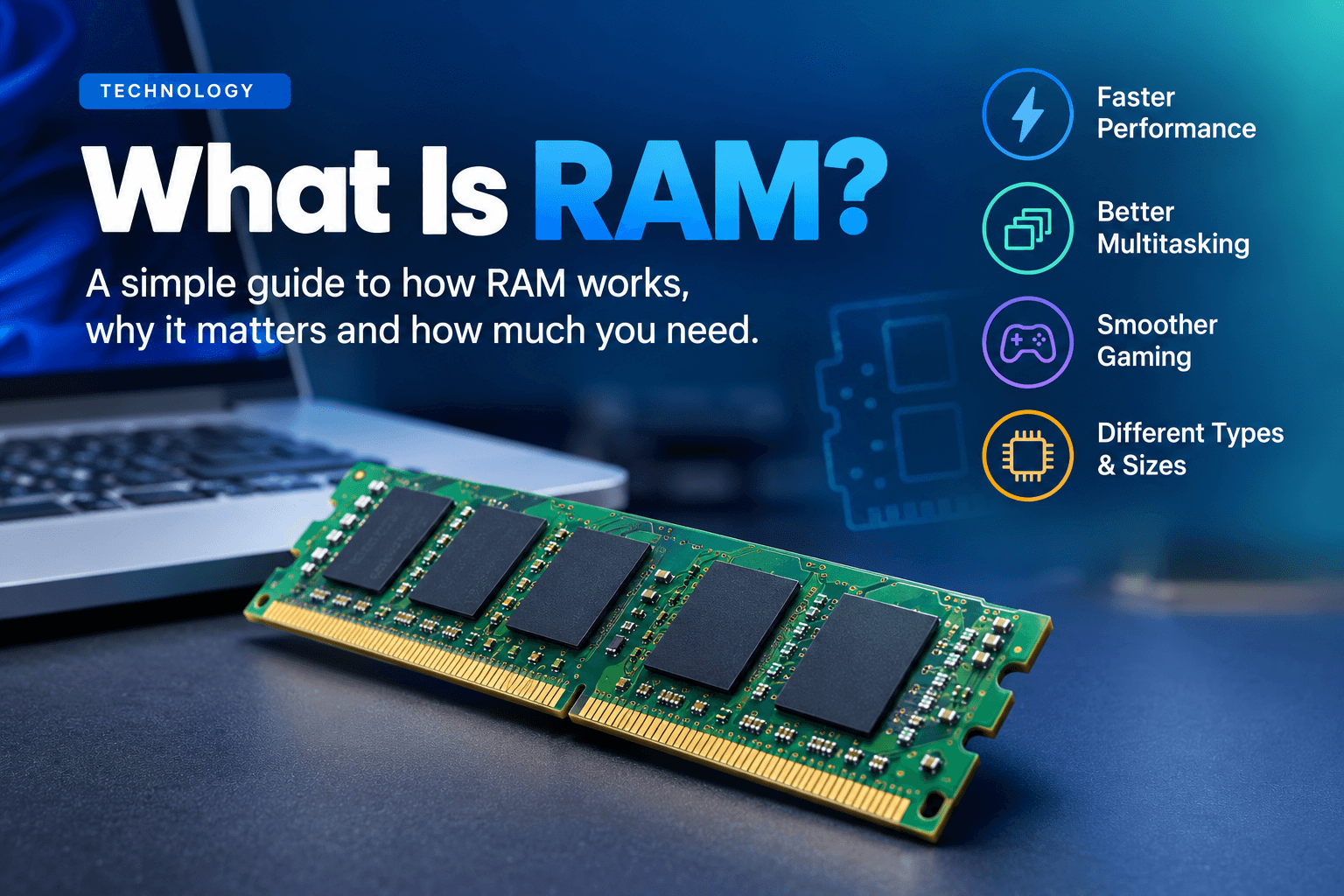
If you have ever wondered what is RAM and why every laptop, phone, and gaming PC lists it first on the spec sheet, this guide answers it in plain language. RAM, short for random access memory, is your computer's short-term memory. It holds the data your processor is using right now, so it has a direct effect on speed, multitasking, and gaming. Below you will find the RAM meaning, how it works, the main types, how much RAM you need, and whether now is a good time to buy.
Key Takeaways
- RAM is fast, temporary computer memory that stores data for the apps and files you have open.
- It is volatile memory, so everything in it clears when the computer shuts down or restarts.
- More RAM helps with multitasking and heavy workloads, but only until your needs are met.
- DDR4 and DDR5 are the main types today, and your motherboard decides which one you can use.
- 16GB works for many people, 32GB is the current sweet spot, and 64GB or more suits professional work.
- RAM prices are under pressure, so read our guide on whether to buy RAM now or wait before you spend.
In This Guide
- What Is RAM?
- How RAM Works
- Why Is RAM Important?
- RAM vs Storage, ROM, CPU, and Virtual Memory
- Types of RAM
- RAM Speed and Latency
- How Much RAM Do You Need?
- RAM Prices: Buy Now or Wait?
- Signs You Need More RAM
- Upgrading RAM
- How to Check RAM Usage
- How to Free Up RAM
- Can RAM Get Malware?
- Choosing the Right RAM
- The Future of RAM
- Frequently Asked Questions About RAM
- Sources and Further Reading
What Is RAM?
What Does RAM Stand For?
The RAM full form is random access memory. It is called "random access" because the computer can read or change data in any order, quickly, without scanning through storage from the start. You will also see it called PC memory, system memory, main memory, or just memory.
For a second plain-English definition, the HP Tech Takes guide to RAM and gigabytes describes it the same way: short-term memory that temporarily holds data the CPU needs to reach quickly, and that is wiped when the computer powers off.
What Is RAM on a Computer or Laptop?
The simplest RAM meaning is short-term memory. When you open an app, load a website, or edit a document, the data is copied into RAM so the processor can reach it at once. Inside a desktop, RAM usually comes as a flat circuit board with memory chips, called a memory module, memory stick, or DIMM. Laptops often use a smaller version called SO-DIMM, and many thin laptops have soldered RAM that cannot be removed. Most computers ship with at least two memory slots, often with room to add more.
What Does RAM Do in a PC?
RAM gives the CPU high-speed, short-term storage for active data. The operating system, your browser tabs, chat apps, and games all keep their working data in RAM while you use them. If there is not enough RAM, the computer has to move data back and forth to slower storage, and you notice lag, freezing, and slow app loading.
What Is a Gigabyte of RAM?
RAM capacity is measured in gigabytes (GB). Think of it as the size of your workbench. A computer with 16GB of RAM has twice the working space of one with 8GB, so it can keep more apps and files ready at the same time. HP Tech Takes uses the same workbench comparison when it explains what GB RAM means: a bigger bench lets the computer handle more tasks at once without slowing down.
What Uses RAM?
Almost everything. Your operating system, web browser, word processor, Discord, streaming software, and video games all load data into RAM. Some programs need far more than others. Video editors, 3D tools, virtual machines, and modern games are heavy users, and the more programs you run at once, the more memory you need.
Browser tabs are the example most people recognize. Corsair's guide on how much RAM a computer needs points out that having many tabs open at the same time can be one of the biggest drains on memory, even if all you do is browse. Each page keeps its text, images, and scripts in RAM, and the browser itself is held in memory too. Corsair's explainer on what RAM does in a computer adds a good habit to remember: because system memory is volatile, any unsaved work is lost when you close an app or switch the machine off.
How RAM Works
The Basics: How Computer Memory Behaves
When you launch a program, your computer copies its data from the storage drive into RAM. The processor then works from RAM because it is much faster than any SSD or hard drive. When you close the program or power off, that data is cleared. The original copy stays safe on your storage drive.
A simple way to picture it: your storage drive is a bookshelf and RAM is your desk. You pull out the books you need and place them on the desk, where they are easy to reach.
The Technical Side
RAM is built from a grid of tiny transistors and capacitors, and each intersection stores one bit of data as charged or uncharged. A memory controller keeps refreshing those charges and fetches data by its exact address, billions of times every second. RAM connects to the processor over a high-speed memory bus, which is where much of its speed comes from.
Evolution of RAM Technology
Early memory was bulky and held very little. Dynamic RAM, built from one transistor and one capacitor, was invented at IBM in 1967, and Intel's 1103 became the first DRAM chip sold to the public in 1970. Synchronous DRAM arrived in the 1990s, and DDR followed in 1998 by doubling the data moved on each clock cycle. Every generation since, from DDR2 to DDR5, has brought higher speeds, larger capacity, and lower power use.
Why Is RAM Important?
RAM controls how many things your computer can do at once and how smoothly it does them. With enough RAM, apps open faster, you can keep many Chrome tabs open, and switching between programs feels instant. Without enough, even a fast processor and a quick NVMe SSD will struggle.
Having enough RAM gives you:
- Better system performance and shorter load times
- Smoother multitasking
- Support for modern, memory-hungry software and games
- Fewer freezes, crashes, and stuttering
RAM vs Storage, ROM, CPU, and Virtual Memory
RAM vs Storage (and Why We Still Need Drives)
RAM vs SSD or HDD comes down to speed against permanence. RAM is very fast but temporary. Storage is slower but keeps your files after the power goes off. We do not use RAM for everything because it costs much more per gigabyte and loses its contents without power. You need both: RAM as the workspace and storage as the filing cabinet.
RAM vs ROM
ROM, or read-only memory, is non-volatile memory that holds permanent instructions such as firmware and the BIOS. RAM is volatile, can be read and rewritten again and again, and is much larger and faster for active tasks.
RAM vs CPU (Processor)
The CPU is the brain that runs instructions and does the calculations. RAM is the short-term memory it pulls data from. They work as a team. More RAM lets the processor keep more data close, while a faster CPU finishes tasks sooner. Extra RAM will not fix a slow processor, and a faster processor will not fix a shortage of memory.
RAM vs Cache Memory and Virtual Memory
CPU cache (L1, L2, and L3) is tiny, extremely fast SRAM built into the processor. RAM sits one step below it: larger, slower, and shared across the whole system. When physical RAM runs out, the operating system uses disk space as virtual memory, called swap on Linux and the page file on Windows. It keeps the system running, but performance drops sharply because paging to disk is far slower than RAM.
Microsoft Learn covers this in detail for Windows. Its documentation on RAM, virtual memory, the pagefile, and memory management in Windows explains that RAM is a limited resource while virtual memory is, for practical purposes, unlimited, and that the operating system only assigns RAM page frames to the virtual memory pages that are actually in use. Its introduction to page files adds that a page file lets Windows move rarely used modified pages out of physical memory, so the RAM you have is used more efficiently for the pages you touch most often.
The Memory Hierarchy
Computers do not use one kind of memory. They stack several kinds, from the smallest and fastest to the largest and slowest. At the top are CPU registers and cache built from SRAM. Below them sits main memory, which is the DRAM we call RAM. Below that is storage such as an SSD or hard drive. Each level holds a copy of the most useful data from the level beneath it, which is why a small amount of very fast memory can make a whole system feel quick.
Carnegie Mellon University's School of Computer Science teaches this in its systems courses. The CMU memory hierarchy lecture notes from course 15-213 show SRAM serving as cache and DRAM serving as main memory, with disk far behind both in speed. A later CMU course, 15-740 on computer architecture, goes further into how DRAM reads, writes, and refreshes work inside the chip.
Types of RAM
DRAM vs SRAM
DRAM stores each bit in a capacitor that needs constant refreshing. It is cheaper and denser, so it is used as main system memory. SRAM is faster and more reliable but costs more and takes more space, so it is used for CPU cache.
The cell design explains the difference. According to the Carnegie Mellon University School of Computer Science lecture notes, an SRAM cell stores a bit using four or six transistors and does not need refreshing, while a DRAM cell uses one transistor plus a capacitor and must be refreshed regularly. The same notes show SRAM costing far more per bit, and both types are volatile, meaning they lose their data when power is removed.
SDRAM and DDR
Most modern memory is DDR SDRAM, short for Double Data Rate Synchronous DRAM. It syncs with the system clock and transfers data twice per cycle.
DDR4 vs DDR5
DDR4 is still widely used and gives excellent value. DDR5 is faster, uses less power, and supports larger modules. The two are not interchangeable, so the type you buy must match your motherboard. If you already have enough DDR4, buying a new motherboard just for DDR5 may not be worth the cost. If you are building a new PC, DDR5 is usually the better long-term pick.
GDDR, VRAM, and HBM
Graphics cards use their own memory, such as GDDR6, to move large amounts of visual data quickly. Some high-end hardware uses stacked High Bandwidth Memory (HBM). This is separate from the system RAM in your computer.
ECC RAM
ECC (error-correcting code) memory can detect and fix common data corruption. It is mostly found in servers and workstations, where data accuracy matters, and it works with platforms such as AMD EPYC and Intel Xeon.
Can My Computer Use Any RAM?
No. Your motherboard decides which type, speed, and capacity it supports, so check the manufacturer's specifications before you buy. RAM compatibility problems are one of the most common upgrade mistakes. Each generation, such as DDR3, DDR4, and DDR5, has physical and electrical differences that make it fit only certain motherboard slots. Memory makers like Corsair offer a RAM and motherboard compatibility checker where you enter your system or motherboard model and get a list of kits that work with it.
RAM Speed and Latency
RAM speed is measured in MHz or MT/s, and a higher number means faster data transfer. Latency, usually shown as CAS latency or CL (for example CL16), is the delay between a command and its response, and lower is better. Running two matched sticks in dual channel mode and enabling XMP or EXPO in the BIOS lets your memory run at its rated speed. Faster RAM can raise frame rates in CPU-heavy games, but for most people capacity matters more than these specs.
How Much RAM Do You Need?
The answer to how much RAM do I need depends on what you do. This quick guide links to a deeper answer for each size.
| RAM size | Best for | Read more |
|---|---|---|
| 4GB to 8GB | Web browsing, email, documents, and streaming | Basic use only |
| 16GB | Everyday multitasking, photo editing, and most gaming | Is 16GB RAM enough for the next 5 years? and Can GTA 5 run on 16GB RAM? |
| 32GB | Modern AAA gaming, heavy multitasking, and creative work | Is 32GB RAM overkill in 2026? |
| 64GB | 4K and 8K video editing, virtual machines, and local AI models | Is 64GB RAM overkill in 2026? |
| 128GB and above | Servers, scientific work, and specialist workstations | Is 256GB of RAM overkill? and Is 2TB RAM possible? |
Adding more RAM than your workloads need brings diminishing returns. Once your apps fit comfortably in memory, extra capacity will not make a noticeable difference to speed or FPS. Check the RAM recommendations for the software you use most, add them up, and compare that total with what your computer has.
What Manufacturers Recommend
Two well-known hardware brands give similar advice, and both line up with the table above.
- HP Tech Takes: The HP guide to gigabytes of RAM places 4GB to 8GB at basic tasks, 8GB to 16GB at casual gaming and photo editing, 16GB to 32GB at serious gaming and video editing, and 32GB or more at professional-grade work. It also says 16GB is a good balance of performance and cost for most users, and that 16GB is a sensible minimum for modern gaming with 32GB ideal for future-proofing.
- Corsair: The Corsair guide on how much RAM your computer needs now recommends 32GB for most systems, because it leaves room for games, office work, and video and image editing with several programs open at once. It also warns that 8GB limits you to one or two apps and a couple of browser tabs at a time.
The takeaway is the same as the one in our own guides: 16GB still works for plenty of people, but 32GB is the safer choice if you game, multitask heavily, or plan to keep the machine for years.
RAM Prices: Buy Now or Wait?
RAM prices have been a big concern lately, and many shoppers keep asking why RAM is so expensive and when it will drop. The short answer from our guides is that memory makers have moved a lot of production toward high-bandwidth memory and enterprise chips for AI infrastructure, which has tightened the supply of consumer DRAM. Read the full answers here:
- Is RAM expected to go down in price? Supply constraints and heavy AI demand are keeping the RAM price forecast high.
- Should I buy RAM now or wait? If you need an upgrade or are building a system, buying now is generally the safer choice.
Signs You Need More RAM
These are the common signs you need more RAM:
- Your system freezes or stops responding during normal tasks
- Apps crash or show memory errors
- Programs and large files open slowly
- Your drive is busy all the time, which means virtual memory is in use
- You notice lag when switching between apps or browser tabs
- Memory usage sits above 80 percent for long stretches
- An installer warns that your PC does not meet the minimum requirements
If several of these happen often, it is time to upgrade.
Upgrading RAM
Should I Upgrade My RAM?
Often yes, because a RAM upgrade is one of the most cost-effective ways to speed up a PC. But moving to a newer generation is not always worth it. If your DDR4 memory is already enough, a new motherboard for DDR5 may cost more than the gain is worth. For a brand new build, the newer generation usually gives the system a longer life.
Can RAM Be Added to a Laptop?
On many laptops, yes. You usually remove a bottom panel and fit compatible SO-DIMM modules. Check your laptop's specifications first, because some models have soldered RAM and cannot be upgraded at all.
Which to Upgrade: RAM or the Whole Computer?
If your processor and storage are still fine, adding RAM can give an older machine a second life. If the whole system is several years old and struggling in every task, a new computer may be the better buy.
How to Check RAM Usage
Windows
Press Ctrl + Shift + Esc to open Task Manager, click the Performance tab, and select Memory. You will see total, used, and available RAM. The Processes tab shows which apps use the most. For a deeper look, Microsoft Learn hosts RAMMap from Sysinternals, a free tool that shows detailed physical memory usage.
macOS
Open Activity Monitor from Applications, then Utilities, and click the Memory tab. The Memory Pressure graph shows how stressed your system is.
Linux
Run top or htop in the terminal to watch memory use in real time.
What to Watch For
Sustained high usage matters more than a short spike. Also watch swap activity, memory used by each process, and steady growth over time, which can point to a memory leak or an undersized system. A message about being out of memory is a clear warning.
How to Free Up RAM Without Upgrading
You can get more from the RAM you already have:
- Close background apps and browser tabs you do not need.
- Switch to lighter programs in place of resource-heavy ones.
- Turn off startup programs you do not use.
- Keep your operating system and drivers updated.
- Use a browser extension that suspends inactive tabs.
- Adjust virtual memory settings so they work well with your physical RAM.
Modern operating systems use free memory on purpose, so high RAM usage during normal use is not always a problem. If you plan to change virtual memory settings on Windows, read the Microsoft Learn introduction to page files first. A larger page file is not a substitute for real RAM, because disk is far slower than memory.
Can RAM Get Malware?
Most malware does not target RAM because memory clears on every restart. Some threats do, though. Point-of-sale malware can perform RAM scraping, which steals sensitive data such as card details straight from memory while it is in use.
Choosing the Right RAM
When you buy RAM, balance these factors:
- Compatibility: match the type your motherboard supports, DDR4 or DDR5.
- Capacity: plan for your current workload plus some room to grow.
- Speed: higher frequency helps some games and creative tasks, but check your motherboard's limit.
- Latency: a lower CAS latency means a faster response.
- Brand and budget: pick a trusted brand, and if money is tight, choose quality over raw capacity.
The Future of RAM
Expect larger capacity in smaller modules, lower power use, and smarter memory management. New designs are also narrowing the gap between memory and storage, and non-volatile RAM that keeps data without power is one of the most interesting areas of research. Newer generations draw less power, which helps laptop battery life and cuts energy use in data centers.
Frequently Asked Questions About RAM
What is RAM in simple words?
It is your computer's short-term memory, where it keeps the data it is using right now so it can reach it quickly.
What is the difference between RAM and storage?
RAM is fast and temporary. Storage is slower but keeps data permanently, even with the power off.
Can I download more RAM?
No. RAM is a physical part that has to be installed. Any site that offers downloadable RAM is a scam or a joke.
Can I mix different RAM speeds or types?
It is not recommended. You cannot mix DDR4 and DDR5 at all, and mixing speeds can cause compatibility problems and lower performance.
What happens when RAM is full?
The computer uses your drive as virtual memory, which is much slower. Apps may freeze, crash, or respond slowly.
Does more RAM always mean better performance?
No. Once your workloads fit comfortably, extra RAM adds little. The CPU, GPU, and storage matter too.
Which RAM question should I read next?
- Is 16GB RAM enough for the next 5 years?
- Can GTA 5 run on 16GB RAM?
- Is 32GB RAM overkill in 2026?
- Is 64GB RAM overkill in 2026?
- Is 256GB of RAM overkill?
- Is 2TB RAM possible?
- Is RAM expected to go down in price?
- Should I buy RAM now or wait?
Sources and Further Reading
These trusted sources back up the definitions, comparisons, and sizing advice in this guide:
- HP Tech Takes: beginner-friendly definitions of RAM and gigabytes, plus practical advice on how much RAM you need.
- Microsoft Learn: official documentation on RAM, virtual memory, and the pagefile in Windows, with a page file introduction and the RAMMap memory tool.
- Corsair: practical explanations from a memory maker, including how much RAM your computer needs and a RAM compatibility checker.
- Carnegie Mellon University, School of Computer Science: academic lecture notes comparing DRAM and SRAM and explaining the memory hierarchy.
Conclusion
RAM is not the most glamorous part of a computer, but it shapes how fast and smooth everything feels. Match your capacity to what you actually do, make sure the type fits your motherboard, and check prices before you buy. Use the guides above to answer the specific question you came with.